 Web Hosting
 Windows HostingBuilt for Windows apps and websites – stability, speed and flexibility
 Reseller HostingLaunch a hosting business without technical skills or expensive infrastructure
 Affiliate ProgramRefer customers and earn commissions from sales across our platform
 Domain SearchFind and secure a domain name in seconds with our quick lookup tool
 CO ZA Domains
 All DomainsExplore domain names from over 324 TLDs globally – all in one place
 Free Whois Lookup Tool South Africa
 VPS
VPS Website Builder
 Online ShopSet up a sleek eCommerce store with zero coding knowledge
 SSLs
SSLs SupportAccess help articles, how-tos, and everything about our services
 Blog
Blog Contact UsReach our team instantly via live chat or drop us an email
You have a working .co.za domain. Business is growing. Now you need a separate space for your blog, store, or client portal without buying a new domain. That is exactly what a subdomain gives you.
This guide walks you through how to add a subdomain to your .co.za domain in South Africa cPanel. No technical background needed. Just follow each step, and you will have your subdomain live in minutes.
What Is a Subdomain and Why It’s Important for .co.za Domains?
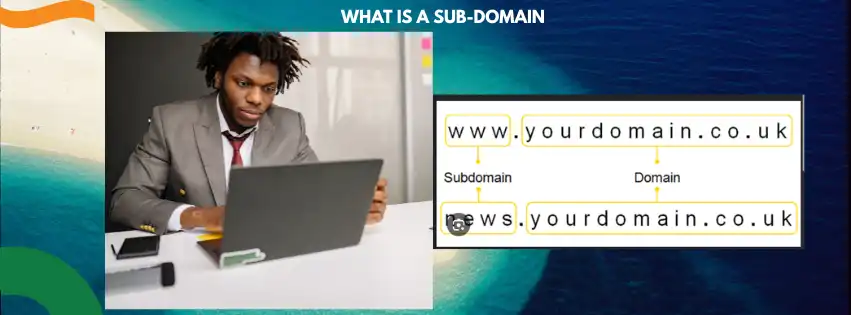
A subdomain sits in front of your main domain, separated by a dot. If your main domain is yourbusiness.co.za, a subdomain looks like shop.yourbusiness.co.za or blog.yourbusiness.co.za.
It functions as a separate section of your website with its own files, its own content, and sometimes even its own CMS installation. You do not need to register it as a new domain, which saves you money.

Common Uses for Subdomains on .co.za Domains
| Subdomain Example | Common Use |
|---|---|
shop.yourbusiness.co.za | Separate online store |
blog.yourbusiness.co.za | Content marketing blog |
portal.yourbusiness.co.za | Client login area |
dev.yourbusiness.co.za | Staging or testing site |
mail.yourbusiness.co.za | Webmail access |
support.yourbusiness.co.za | Help desk or ticketing system |
South African businesses use subdomains to organise their online presence without paying for multiple domain registrations. You can create as many subdomains as your hosting plan allows all under your main .co.za address.
What You Need Before You Add a Subdomain to Your .co.za Domain in South Africa cPanel
Before you open cPanel, make sure these three things are in place.
1. A registered and active .co.za domain
Your domain must already be registered and pointed to your hosting provider’s nameservers. If you registered your .co.za with Truehost, this is usually handled automatically when you sign up.

2. A cPanel hosting account
You need a hosting plan that includes cPanel. At Truehost South Africa, all hosting plans come with cPanel included at no extra cost. Plans start from as low as R33/month when billed triennially, making it one of the most affordable options for South African website owners.
3. Your cPanel login credentials
You receive these in your welcome email after signing up. You can access cPanel by visiting yourdomain.co.za:2083 in your browser, or through the direct link Truehost sends after signup.
How to Add a Subdomain to Your .co.za Domain in South Africa cPanel (Step-by-Step)
cPanel has two interfaces depending on your hosting provider’s version. This guide covers both: the newer Domains tool (used in the latest cPanel versions) and the older Subdomains tool (still available on some accounts).
Truehost uses the latest cPanel interface, so most users will follow Method 1 below.
Method 1: Using the Domains Tool (Latest cPanel Version)
This is the current standard method for adding subdomains in cPanel.
Step 1: Log in to cPanel
Go to yourdomain.co.za:2083 and enter your username and password. You will land on the cPanel dashboard.
Step 2: Go to the Domains section
Scroll down until you see the Domains section. Click on Domains.
Step 3: Click “Create a New Domain”
On the Domains page, click the Create A New Domain button in the top right corner.
Step 4: Type in your subdomain name
In the Domain text box, type the full subdomain. For example:
blog.yourbusiness.co.za
cPanel will recognise that yourbusiness.co.za is already in your account and will treat this as a subdomain automatically.
Step 5: Uncheck the shared document root option
Deselect this box. This creates a separate folder for your subdomain’s files, which is the recommended setup. Keeping subdomains in the same root directory as your main site can cause conflicts, especially with WordPress installations.
Step 6: Confirm the document root path
cPanel will auto-generate a document root path. For example:
/home/username/blog.yourbusiness.co.za
You can change this if you want the files stored somewhere specific. Otherwise, leave it as is.
Step 7: Click Submit
Hit the Submit button. A success message will confirm your subdomain has been created.
Method 2: Using the Legacy Subdomains Tool (Older cPanel Versions)
Some hosting accounts still display the older interface. If you cannot find the Domains tool, follow these steps.
Step 1: Log in to cPanel
Access your cPanel dashboard using your login credentials.
Step 2: Find the Subdomains icon
Look under the Domains section and click Subdomains.
Step 3: Enter the subdomain prefix
In the Subdomains text box, type only the prefix not the full domain. For example, type shop if you want shop.yourbusiness.co.za.
Step 4: Select the main domain
From the dropdown next to the text box, select your .co.za domain. cPanel will show the full subdomain address once both are filled in.
Step 5: Check the document root
cPanel fills in the document root automatically using the subdomain name you entered. It will look something like /public_html/shop. You can edit this path if needed.
Step 6: Click Create
Press the Create button. Your subdomain is now set up and ready for content.
What Happens to DNS When You Add a Subdomain?
When you create a subdomain in cPanel, the system automatically creates an A record in your DNS zone. This points your subdomain to your server’s IP address.
You do not need to add DNS records manually if your domain is already pointed to Truehost’s nameservers. The process is automatic.
However, if your domain uses external nameservers (like Cloudflare or another DNS provider), you will need to manually add an A record there as well. The A record should point to your cPanel server’s IP address.
DNS Record Overview for Your Subdomain
| Record Type | Name | Value | Purpose |
|---|---|---|---|
| A Record | blog | Your server IP (e.g. 102.89.150.22) | Points subdomain to your server |
| CNAME Record | blog | yourbusiness.co.za | Alternative to A record for aliases |
To find your server’s IP address, check the Server Information section in your cPanel dashboard, or contact your hosting provider.
How Long Does DNS Propagation Take for .co.za Subdomains?
After you create your subdomain, it does not go live everywhere in the world at the same instant. DNS propagation is the time it takes for servers around the internet to pick up the new record.

For .co.za domains in South Africa, here is what to expect:
| Change Type | Typical Propagation Time |
|---|---|
| New subdomain (A record) | 30 minutes to 24 hours |
| CNAME record | 30 minutes to 24 hours |
| MX record | 1 to 24 hours |
| Nameserver change | Up to 48 hours |
Most South African users see new subdomains resolve within 30 to 60 minutes. In some cases, especially when ISPs have aggressive DNS caching, it can take up to 24 hours.
To check if your subdomain has propagated, use a free tool like dnschecker.org or whatsmydns.net. These tools show you propagation status from multiple locations around the world.
How to Add an SSL Certificate to Your New Subdomain
A subdomain without SSL shows as “Not Secure” in browsers. This affects visitor trust and can push your rankings down.
Here is how to get SSL on your subdomain after creating it:
Option 1: AutoSSL (Easiest)
Truehost runs AutoSSL on all hosting accounts. This automatically issues a free SSL certificate to any new subdomain within a few hours of DNS propagation. You do not need to do anything.
Option 2: Install SSL Manually
If AutoSSL has not triggered after 24 hours, log in to cPanel, go to SSL/TLS Status, and click Run AutoSSL. This forces the system to check and issue certificates for all your domains and subdomains.
Option 3: Wildcard SSL
If you plan to create many subdomains, a Wildcard SSL certificate covers all of them under one certificate. Truehost offers Wildcard SSL as part of their premium SSL options. This is ideal for businesses that spin up subdomains regularly.
How to Upload Files to Your Subdomain
After creating your subdomain, the document root folder is ready. You can upload files to it right away.
Using File Manager in cPanel
- In cPanel, click File Manager
- Navigate to the document root folder for your subdomain (e.g.
blog.yourbusiness.co.za) - Upload your HTML, PHP, or website files into that folder
- Visit your subdomain in a browser to confirm it works
Installing WordPress on a Subdomain
If you want a separate WordPress site on your subdomain:
- Go to Softaculous Apps Installer in cPanel
- Click WordPress and then Install
- Under Choose Installation URL, select your subdomain from the dropdown
- Fill in your site name, admin username, and password
- Click Install
WordPress will be live on your subdomain within a few minutes. Truehost’s one-click installer makes this the fastest way to get a new site running.
Managing Your Subdomain After Creation
Once your subdomain is live, you can manage it from the same cPanel account. Here is a quick overview of what you can do:
| Action | How to Do It in cPanel |
|---|---|
| Redirect subdomain | Domains → Manage → Redirects |
| Create email for subdomain | Email Accounts → Create |
| Delete subdomain | Domains → Remove |
| Check disk usage | Disk Usage tool in cPanel |
| Add password protection | Directory Privacy tool |
Note: When you delete a subdomain in cPanel, the DNS records are removed, but the files in the document root folder are not deleted automatically. You need to remove those manually using File Manager.
Troubleshooting Common Issues When Adding a Subdomain to a .co.za Domain in South Africa
Even with the right steps, things can occasionally go wrong. Here are the most common problems and how to fix them.
1. Subdomain is Not Loading After 24 Hours
This usually means the DNS record was not created correctly, or your domain is using external nameservers where the A record was not added.
Fix: Log in to cPanel, go to Zone Editor, and check if an A record exists for your subdomain. If it is missing, add it manually pointing to your server IP address.
2. You See the Main Website Instead of the Subdomain
This happens when the document root for the subdomain is set to the same directory as the main site.
Fix: Go to cPanel → Domains → edit the subdomain and change the document root to a separate folder.
3. SSL Certificate Not Showing on the Subdomain
AutoSSL cannot issue a certificate until DNS has fully propagated.
Fix: Wait 24 hours after the subdomain resolves, then go to SSL/TLS Status in cPanel and click Run AutoSSL.
4. “This Domain Already Exists” Error
cPanel will refuse to create a subdomain if it already exists in another account on the same server.
Fix: Contact your hosting provider’s support team to check for conflicts. Truehost’s support team is available 24/7 via live chat or WhatsApp to help resolve this quickly.
5. WordPress on Subdomain Conflicts with Main Site
This can happen when both sites share the same public_html directory and one uses .htaccess rules that override the other.
Fix: Always create subdomains with separate document roots. Never install WordPress inside a subfolder of an existing WordPress site.
Why Use Truehost to Manage Your .co.za Subdomain in South Africa?
Adding a subdomain is only the start. The hosting provider behind your .co.za domain shapes how reliable and fast that subdomain performs.
At Truehost South Africa, we include cPanel with every hosting plan, starting from R33/month billed triennially. Here is what that gets you:
| Feature | Truehost Offering |
|---|---|
| cPanel access | Included with all plans |
| Free SSL (AutoSSL) | Yes, for all domains and subdomains |
| Free .co.za domain | Included with annual hosting plans |
| Softaculous one-click installer | Yes, including WordPress |
| 24/7 support | Live chat and WhatsApp |
| Free website migration | Yes, from any host |
| Uptime guarantee | 99.9% |
We offer Wildcard SSL for businesses that create multiple subdomains, so you do not have to issue a separate certificate for each one. Our servers are hosted in high-performance data centres optimised for South African users, so local visitors get fast load speeds.
If you are not yet hosting your .co.za with Truehost, you can migrate your site for free with zero downtime. Our team handles the files, databases, and DNS settings so nothing breaks in the move.
Quick Reference: Adding a Subdomain to Your .co.za in cPanel
| Step | Action |
|---|---|
| 1 | Log in to cPanel at yourdomain.co.za:2083 |
| 2 | Click Domains under the Domains section |
| 3 | Click Create A New Domain |
| 4 | Type your full subdomain (e.g. blog.yourbusiness.co.za) |
| 5 | Deselect shared document root |
| 6 | Confirm or set your document root folder |
| 7 | Click Submit |
| 8 | Wait for DNS propagation (30 mins to 24 hours) |
| 9 | Install SSL via AutoSSL or manually |
| 10 | Upload files or install WordPress |
Wrapping Up
Creating a subdomain for your .co.za domain in South Africa using cPanel takes less than five minutes. The process is straightforward, especially when your domain and hosting are managed under the same cPanel account.
The key things to remember: always use a separate document root for each subdomain, allow time for DNS propagation, and make sure SSL is applied before you launch to the public.
If you need help at any point, Truehost’s 24/7 support team is always on hand. And if you are still looking for the right .co.za hosting package, check out Truehost South Africa cPanel is included with every plan, and setup takes just a few minutes.