 Web Hosting
 Windows HostingBuilt for Windows apps and websites – stability, speed and flexibility
 Reseller HostingLaunch a hosting business without technical skills or expensive infrastructure
 Affiliate ProgramRefer customers and earn commissions from sales across our platform
 Domain SearchFind and secure a domain name in seconds with our quick lookup tool
 CO ZA Domains
 All DomainsExplore domain names from over 324 TLDs globally – all in one place
 Free Whois Lookup Tool South Africa
 VPS
VPS Website Builder
 Online ShopSet up a sleek eCommerce store with zero coding knowledge
 SSLs
SSLs SupportAccess help articles, how-tos, and everything about our services
 Blog
Blog Contact UsReach our team instantly via live chat or drop us an email
Let me tell you something about doing business in South Africa. If you are not on WhatsApp, you are basically invisible.
Think about it. When was the last time you filled out a long, boring contact form on a website? Probably never. But when was the last time you sent a WhatsApp message? Probably about five minutes ago.
Here is the thing. Your customers are the same. They do not want to jump through hoops just to ask you a simple question. They do not want to type out their name, email, phone number, and a message in a tiny little box, only to wonder if anyone will actually read it. They want to chat. Right now. On WhatsApp.
So here is the problem. You have built this beautiful website with Truehost. Maybe you used their drag-and-drop website builder. Maybe you went with WordPress hosting. Either way, your site looks great. But if people cannot reach you instantly, you are losing sales. Simple as that.

The good news? Fixing this is ridiculously easy. In this guide, I will show you exactly how to add WhatsApp button to Truehost website. No coding. No expensive developers. Just you, your website, and a button that brings customers straight to your inbox.
Let us dive in.
Table of Contents
Why Every South African Side-Hustle Needs a WhatsApp Button
Before we get into the how, let us talk about the why. Because honestly, if you are running a business in South Africa and you do not have a WhatsApp button on your website, you are leaving money on the table.
Here is why.

First, instant trust. South African buyers feel safer when they can chat directly with a real person. We are a nation of relationship-builders. We want to know who we are dealing with. A WhatsApp button says, “Hey, I am a real human being, and I am here to help.” That builds trust in seconds.
Second, higher conversion rates. A contact form is a barrier. It takes effort. It feels formal. A WhatsApp button? One click and your customer is in your inbox, asking for a quote or booking an appointment. No middleman. No waiting. Just straight to business.
Third, it is perfect for mobile users. Most web traffic in South Africa happens on phones. People are browsing your site on their lunch break, on the taxi, or while watching TV. A WhatsApp button makes mobile browsing seamless. They do not have to switch apps or remember your number. They just tap and talk.
And here is a bonus reason. Truehost actually offers 24/7 WhatsApp support themselves. They know how important instant communication is. That is why they are on WhatsApp around the clock, helping customers with real humans, not chatbots. If it is good enough for them, it is good enough for you.
So now that we have established why you need this button, let me show you exactly how to add it.
Method 1: The Easiest Way – Using Truehost’s Built-In Website Builder (No Coding)
If you used Truehost’s website builder to create your site, you are in luck. This is the absolute easiest way to add a WhatsApp button. No plugins. No code. Just a few clicks.
Truehost’s website builder, called Olitt, is designed for people like you and me who do not want to mess around with complicated tech stuff. It uses a simple drag-and-drop editor where you can click on anything and move it around. No coding required.
Here is how to do it, step by step.
Step A: Log into Your Truehost Client Area
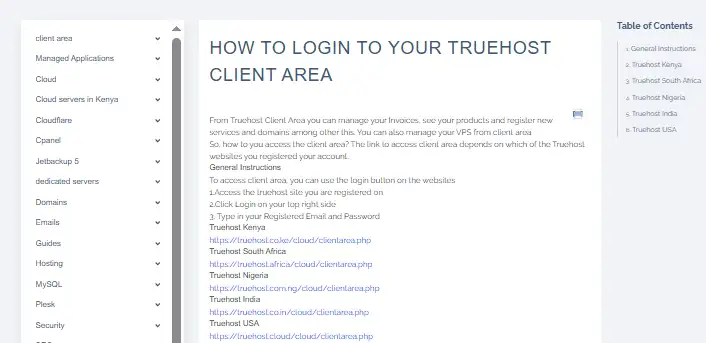
First things first. Head over to the Truehost client area and log in with your username and password. Once you are in, look for your Website Builder dashboard. This is where all the magic happens.
If you are not sure where to find it, look for something like “My Websites” or “Website Builder” in the menu. Click on that, and you should see your site ready to edit.
Step B: Drag a Button Component onto Your Page
Now comes the fun part. In the website builder, you will see a bunch of tools and components on the side of the screen. These are the building blocks of your page.
Look for a Button component or an Icon component. These are usually labelled clearly. Once you find it, simply drag it onto your page layout.
Where should you put it? I recommend placing it somewhere prominent. The header is a great spot because people see it immediately. The contact section is another obvious choice. You could even put one in both places. The more visible, the better.
Step C: Change the Text
Now that your button is on the page, click on it to edit it. Change the text to something that actually makes people want to click.
Do not just write “WhatsApp.” That is boring. Write something action-oriented like:
- Chat with us on WhatsApp
- Get a Quote on WhatsApp
- Click to Chat
- Ask us Anything on WhatsApp
Make it clear what happens when they click. People are busy. They want to know exactly what they are getting into.
Step D: Hyperlink the Button Using a WhatsApp Link
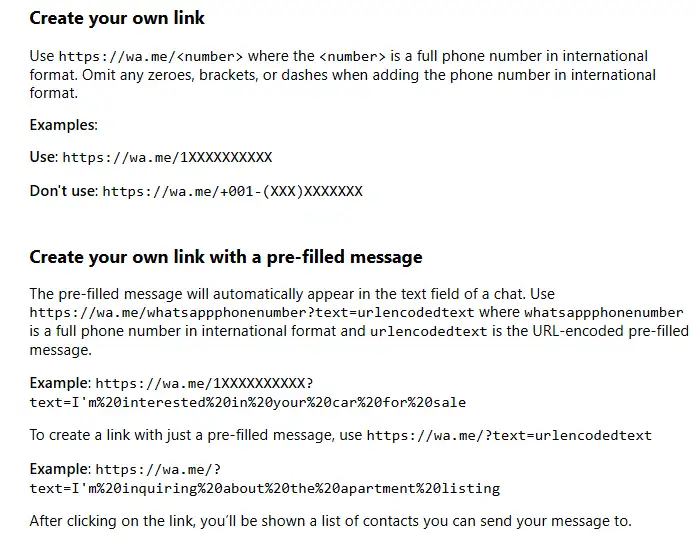
This is the most important step. You need to link your button to your WhatsApp number.
Here is the format you need to use: https://wa.me/27XXXXXXXXX
Let me break that down for you. The 27 is South Africa’s country code. Then you put your cellphone number, but here is the catch – you must omit the leading zero. So if your number is 082 123 4567, you would type 271234567.
Do not use brackets, dashes, or plus signs. Just the numbers. So it should look like this: https://wa.me/271234567
You can also add a pre-filled message. This is a game-changer. When someone clicks your button, WhatsApp will open with a message already typed out for them. Something like: “Hi, I saw your website and I would like to inquire about your services.”
To add a pre-filled message, use this format: https://wa.me/271234567?text=Hi%20I%20saw%20your%20website
The %20 is just a space in URL language. Easy, right?
Once you have your link ready, paste it into the button’s hyperlink field. Most website builders have a little chain icon or a field that says “Link” or “URL.” Paste your WhatsApp link there.
Step E: Hit Publish
You are almost done. Take a moment to look at your button. Does it look good? Is it easy to see? Would you click it?
When you are happy, hit that Publish button. Your website is now live with a shiny new WhatsApp button.
Congratulations! You just made it ten times easier for customers to reach you.
Method 2: For WordPress Users on Truehost (Using a Free Plugin)
If you chose Truehost’s WordPress hosting instead of the website builder, do not worry. Adding a WhatsApp button is still super easy. You just need a plugin.

WordPress plugins are like apps for your website. They add new features without you having to write any code. And there is a fantastic free plugin called Joinchat that does exactly what we need.
Here is how to set it up.
Step 1: Go to Your WordPress Dashboard
Log into your WordPress dashboard. This is usually something like yoursite.com/wp-admin. Enter your username and password, and you are in.
Step 2: Go to Plugins -> Add New
On the left-hand side of your dashboard, you will see a menu. Hover over Plugins and click Add New.
This takes you to the WordPress plugin directory, which is basically a giant library of free plugins.
Step 3: Search for “Joinchat”
In the search bar on the right, type “Joinchat”. Hit enter, and you will see a bunch of results.
Look for the one called “Joinchat” by the creators. It should have a good number of active installations and positive reviews.
Step 4: Install and Activate
Click the Install Now button. WordPress will download and install the plugin for you. Once that is done, the button will change to say Activate. Click that too.
Your plugin is now active and ready to go.
Step 5: Enter Your WhatsApp Number
Now you need to tell the plugin which WhatsApp number to use. In your WordPress menu, you will see a new item called Joinchat. Click on that to open the settings.
Look for the field that says Phone Number or WhatsApp Number. Enter your South African number in international format – remember, that means country code first, no leading zero. So 271234567 for a South African number.
Step 6: Choose Where the Button Appears
Joinchat places a floating button on your site. By default, it appears in the bottom right corner of every page. This is actually a great spot because it is out of the way but always visible.
But you can change this if you want. In the settings, you can choose the position – bottom left, bottom right, or even custom placement. You can also choose which pages show the button. Maybe you only want it on your homepage or your contact page. The choice is yours.
And that is it. Save your settings, and your WhatsApp button will appear on your site instantly.
The best part? Joinchat is completely free and works right out of the box. No complicated setup. No hidden costs. Just a button that turns visitors into customers.
Best Practices for Your WhatsApp Button
Okay, so you have added your WhatsApp button. Good job. But before you walk away, let me share a few tips to make sure you get the most out of it.
Keep It Prominent

Do not hide your WhatsApp button in a corner where nobody can see it. Yes, a floating button in the bottom right is great. But also consider putting a button right at the top of your homepage or in your header. The more visible it is, the more people will click it.
Think of it like a shop sign. You want people to see it the moment they walk in.
Use a Pre-Filled Message
I mentioned this earlier, but it is worth repeating. Set up your link so that when a customer clicks it, a message is already typed out for them.
Something like: “Hi, I saw your website and I would like to inquire about your services.”
This removes friction. The customer does not have to think about what to say. They just hit send. And you get a warm lead delivered straight to your inbox.
Upgrade to WhatsApp Business
If you are serious about your business, download WhatsApp Business. It is free and gives you powerful features like automated away messages, quick replies, and even a business profile with your hours and location.
When customers message you after hours, they get an instant reply letting them know when you will respond. That is good customer service, and it takes five minutes to set up.
Respond Quickly
Here is the thing. Adding a WhatsApp button is great, but only if you actually reply. When someone messages you, they expect a quick response. If you leave them hanging, they will go to your competitor.
Make it a habit to check your WhatsApp messages regularly. Or better yet, set up notifications so you never miss a lead.
Conclusion & Call to Action
Let me wrap this up for you.
Adding a WhatsApp button to your Truehost website is quick, free, and one of the smartest things you can do for your business. It builds trust, boosts conversions, and makes it dead simple for customers to reach you.
Whether you use Truehost’s drag-and-drop website builder or their WordPress hosting, you have no excuse not to do this. It takes maybe ten minutes. And the results? More customers, more sales, more growth.
But here is the thing. If you do not have a website yet, do not let that stop you. You do not need to hire an expensive developer or learn to code. Truehost makes it incredibly easy to get online.
Their Bronze Web Hosting plan starts from as little as R35 a month. That is less than the price of a takeaway meal. And it comes with a free website builder, free SSL certificate, and reliable hosting from a Johannesburg data centre.
You can build your own customer-ready site in minutes, add your WhatsApp button, and start connecting with customers today.
So what are you waiting for? Go ahead. Add that WhatsApp button. Watch your messages flood in. And start turning website visitors into paying customers.
Your customers are waiting to chat. Are you ready?