 Web Hosting
 Windows HostingBuilt for Windows apps and websites – stability, speed and flexibility
 Reseller HostingLaunch a hosting business without technical skills or expensive infrastructure
 Affiliate ProgramRefer customers and earn commissions from sales across our platform
 Domain SearchFind and secure a domain name in seconds with our quick lookup tool
 CO ZA Domains
 All DomainsExplore domain names from over 324 TLDs globally – all in one place
 Free Whois Lookup Tool South Africa
 VPS
VPS Website Builder
 Online ShopSet up a sleek eCommerce store with zero coding knowledge
 SSLs
SSLs SupportAccess help articles, how-tos, and everything about our services
 Blog
Blog Contact UsReach our team instantly via live chat or drop us an email
Last updated on March 3rd, 2026 at 03:57 pm
Moving your website to a new home is a big decision for any site owner. It can feel like a lot of work, but the process is actually very logical.
This guide will show you exactly how to transfer a domain to a new hosting provider like Truehost. We will use simple steps so that anyone can follow along easily.
Transferring a domain means changing the company that manages your web address registration. Usually, people do this to get better support or to save money on yearly fees.

Table of Contents
Step 1: Understanding the 60-Day Rule
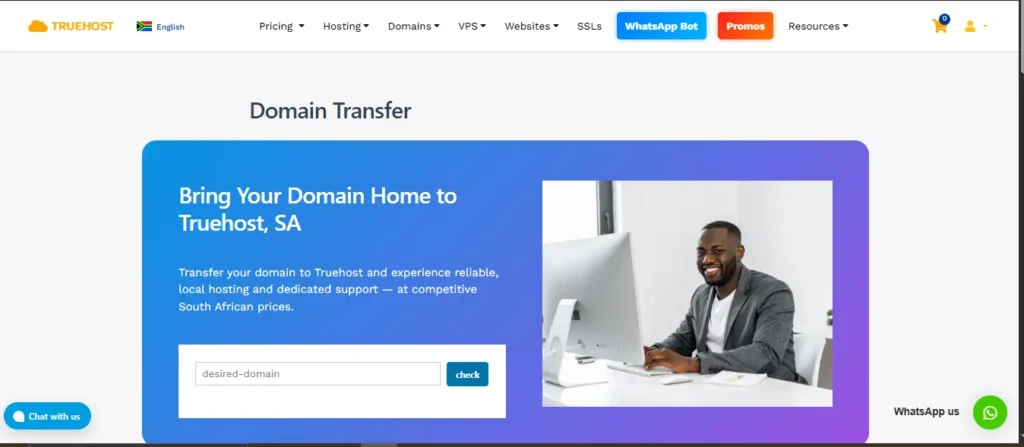
Before you click any buttons, you must check the age of your domain name. A global rule created by ICANN prevents domains from moving too often.
If you bought your domain in the last 60 days, you cannot move it yet. You must wait until day 61 to start the transfer process.
This rule also applies if you recently moved the domain from a different provider. It is a security measure designed to stop hackers from moving stolen domains quickly.
Log into your current account and look at the Registration Date to be sure. If you are past 60 days, you are officially cleared to start the move.

Step 2: Verifying Your Administrative Email
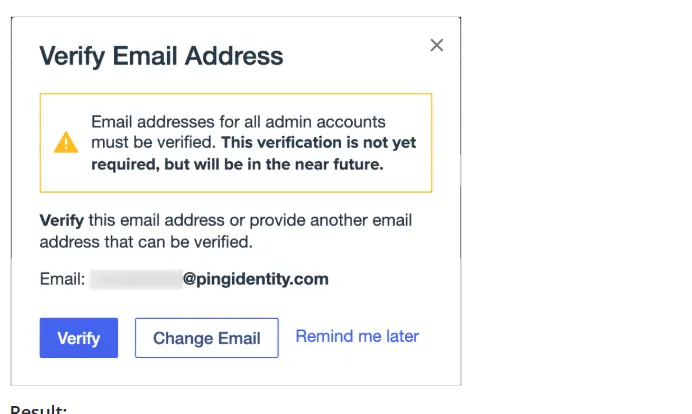
The most common reason domain transfers fail is an old or dead email address. Your current provider will send a Transfer Authorization link to the email on file.
If that email belongs to an old employee or a service you no longer use, you are stuck. You must update this in your Whois or Registrant contact settings.
Wait at least 24 hours after updating your email before you try to start the move. Some systems take a full day to recognize the new contact information.
If you have Domain Privacy or ID Protection turned on, you should disable it now. Privacy services often hide your real email from the transfer system, causing a rejection.
Step 3: Removing the Registrar Lock
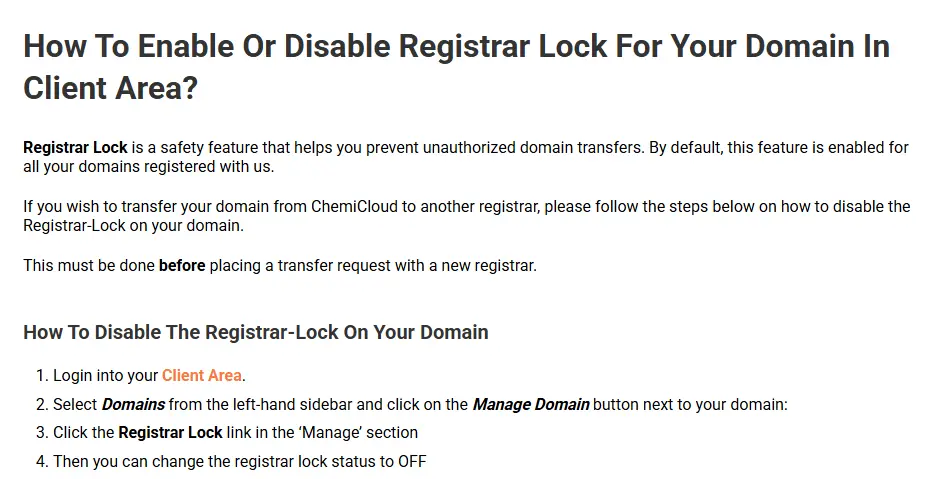
Almost every domain name is Locked by default to prevent unauthorized transfers. This is like putting a physical padlock on your digital front door.
Go to your domain management dashboard and look for Sharing or Security settings. You should see a toggle or a button that says Domain Lock or Registrar Lock.
Switch this to the Off or Unlocked position to allow the domain to leave. You might receive a security email asking you to confirm that you made this change.
Once the domain is unlocked, its status in the global database will change to OK or Active. This signal tells Truehost that they are allowed to come and get the domain.
Step 4: Obtaining the EPP / Authorization Code
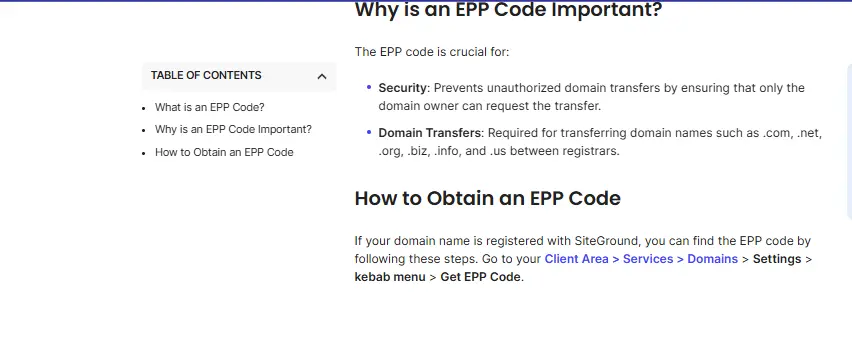
The EPP code is a secret string of characters that acts as the key to your domain. EPP stands for Extensible Provisioning Protocol, but most people just call it an “Auth Code.”
You must request this code from your current provider’s dashboard. There is usually a button that says “Email EPP Code” or “Generate Auth Code.”
Some providers show the code on the screen, while others send it via email for security. Copy this code exactly as it appears, including any symbols or capital letters.
If the code looks like “Ab1#23!45”, do not try to type it out by hand. Copy and paste it into a safe text file so you don’t lose it.
Step 5: Preparing for Potential Downtime

Transferring a domain name itself does not usually take your website offline. However, if you are also moving your hosting files, you need to be careful.
Make a full backup of your website files and your database before you do anything else. This ensures that if something goes wrong, you still have your content safe.
If you use professional email addresses like [email protected], those might stop working. You should prepare your team for a short window where emails might not arrive.
The best way to avoid this is to set up your email accounts at Truehost before the move. This way, the new “inbox” is ready to catch mail as soon as the domain arrives.
Step 6: Starting the Request at Truehost
Now that your domain is unlocked and you have your key, go to Truehost. Look for the section labeled “Domain Transfer.”
Enter your domain name into the search box and click the “Transfer” button. The system will ask you to provide the EPP/Auth code you gathered earlier.
Paste the code into the field and make sure there are no extra spaces. If the code is correct, the system will allow you to add the transfer to your cart.
At this stage, you are technically placing an order for the transfer service. This is the official start of the communication between the two companies.
Step 7: Finalizing the Transfer Payment
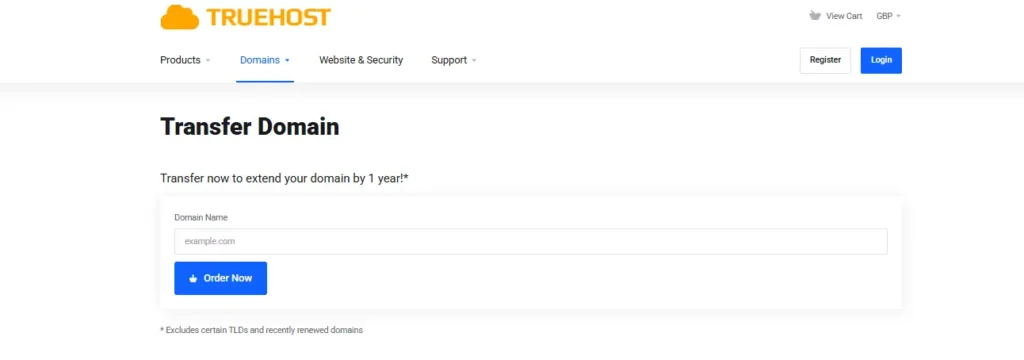
Transferring a domain is not free, but it is usually a very good deal. When you pay for a transfer at Truehost, you are actually paying for a renewal.
This means you get one extra year of registration added to your current expiration date. You are not losing any time you have already paid for at your old company.
Proceed to the checkout and pay the invoice using your preferred payment method. Once the payment is processed, Truehost’s automated system sends the request.
You will receive an email from Truehost confirming that your order has been received. Now, the ball is in the court of your old registrar.
Step 8: Responding to the Confirmation Email
Within a few hours, you will receive an email from your old registrar. This email is a security check to make sure you really want to leave.
It will say something like, “A request has been made to move your domain. Click here to approve or deny.”
You must click the link and select the “Approve” or “Accept” option. If you ignore this email, the transfer will be delayed by several days.
Some providers will automatically approve the move after 5 days if you don’t respond. However, clicking the link manually makes the process much faster.
Step 9: Managing Your DNS During the Move
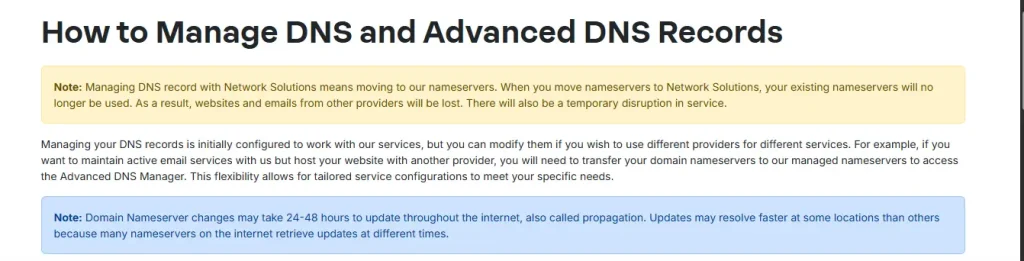
While the transfer is “Pending,” your domain is in a state of transition. You cannot usually change your DNS records or Name Servers during this time.
If your website needs to point to a new server, try to change the Name Servers before you start. This ensures the site stays up while the “ownership” moves.
Truehost allows you to manage your DNS through their client area once the move is done. This gives you a powerful and easy-to-use interface for all your records.
Keep an eye on your website during this week to make sure everything loads correctly. Most users will not see any change at all during the process.

Step 10: The 5-to-7 Day Waiting Period
The internet is a large network, and moving data between companies takes time. Most transfers take exactly five to seven days to fully complete.
This time is used to verify that the transfer is legal and that no one is stealing the domain. You can check the status of your move at any time in the Truehost dashboard.
The status will likely say “Pending Transfer” or “Waiting for Release.” Do not try to restart the process or pay again while it is in this state.
If the transfer takes longer than 10 days, something might be wrong. At that point, you should contact Truehost support for a status update.
Step 11: Finalizing the Move at Truehost
Once the time is up, you will receive a final “Success” email from Truehost. Your domain will now appear in your list of “Active” domains.
Log into your account and check the “Nameservers” section. Ensure they are pointing to the correct hosting provider so your site loads.
You should also check the “Auto-Renew” setting to make sure your domain doesn’t expire. Truehost makes it easy to keep your domain safe for many years.
You now have full control over your domain’s settings and privacy. Congratulations, you have successfully moved your digital property!
Troubleshooting Common Transfer Issues
Sometimes a transfer will fail, but don’t worry because it is usually easy to fix. The most common error is a “Wrong EPP Code” message.
If this happens, go back to your old provider and get a fresh code. Sometimes codes expire after 24 hours for security reasons.
Another issue is the “Domain Locked” error, which means you didn’t turn off the lock. Simply unlock it and ask Truehost to “Retry” the transfer for you.
If your old provider refuses to release the domain, they must give you a reason. Usually, it is because of an unpaid bill or a recent contact change.
Frequently Asked Questions (FAQs)
Does my website stay online during the transfer?
Yes, your website will stay online as long as you don’t delete your old hosting. The domain name move happens in the background without affecting traffic.
How much does it cost to move to Truehost?
The cost depends on your domain extension (like .com or .net). Generally, it is the same price as a one-year renewal.
Can I transfer a domain that has already expired?
It depends on the provider, but usually, the answer is no. You should renew it for one month first, then move it once it is active.
Why does it take 7 days?
This is a safety period set by the industry to prevent “domain slamming.” It gives the original owner time to stop a mistake or a hack.
What is the EPP code exactly?
It is a unique “key” that proves you have the right to move the domain. No company can move a domain without this specific code.
Do I need to buy hosting to move my domain?
No, you can move your domain to Truehost and keep your hosting elsewhere. However, keeping them together is much easier for management.
Can I move a .co.za or .com domain?
Yes, Truehost specializes in many local and international domain extensions. The process for local domains is often even faster.
Will I lose the months I already paid for?
No, your existing time is carried over to the new provider. You simply add one more year to whatever time you had left.
What if I don’t get the confirmation email?
Check your spam folder and verify your contact email address. If it is still missing, ask your old registrar to resend the transfer notice.
Is Truehost support available to help?
Yes, Truehost has a 24/7 support team ready to assist. You can reach them via live chat if you get stuck on any step.
Why Truehost is the Best Choice
Truehost is known for having some of the most affordable prices in the industry. They believe that everyone should be able to own a website without spending a fortune.
Beyond just price, they offer a very modern and clean dashboard. You can manage your domain, your SSL certificates, and your hosting in one place.
Their servers are optimized for speed, which helps your website rank better on Google. Fast loading times are essential for keeping visitors on your page.
By moving your domain to Truehost, you are joining a community of thousands of successful owners. They handle the technical hard work so you can focus on your business.
The transfer process is automated, so there is very little room for human error. Once you provide the EPP code, the system takes care of the rest.
A Final Checklist for Your Move
- Ensure the domain is at least 60 days old.
- Confirm your “Registrant Email” is active and correct.
- Turn off the “Registrar Lock” at your current company.
- Request your EPP/Auth code and save it safely.
- Disable any “Whois Privacy” or “ID Protection” services.
- Visit Truehost and start the transfer order.
- Pay the transfer invoice to add a year to your domain.
- Click the approval link in the email from your old registrar.
- Wait 5 to 7 days for the process to finish automatically.
- Verify your new Name Servers in the Truehost dashboard.
Moving your domain might seem like a giant task, but it is just a series of small steps. Each step is designed to keep your domain safe and secure.
By following this guide, you have taken the right steps to improve your website’s home. Truehost is ready to help you grow every step of the way.