 Web Hosting
 Windows HostingBuilt for Windows apps and websites – stability, speed and flexibility
 Reseller HostingLaunch a hosting business without technical skills or expensive infrastructure
 Affiliate ProgramRefer customers and earn commissions from sales across our platform
 Domain SearchFind and secure a domain name in seconds with our quick lookup tool
 CO ZA Domains
 All DomainsExplore domain names from over 324 TLDs globally – all in one place
 Free Whois Lookup Tool South Africa
 VPS
VPS Website Builder
 Online ShopSet up a sleek eCommerce store with zero coding knowledge
 SSLs
SSLs SupportAccess help articles, how-tos, and everything about our services
 Blog
Blog Contact UsReach our team instantly via live chat or drop us an email
You finally want to run your own AI assistant, one that never sleeps, never leaks your data, and answers you right inside Telegram or WhatsApp.
That AI assistant is OpenClaw. It gives you a 24/7 autonomous AI assistant; your conversations stay private, and your API key is yours. No middlemen.
This guide is written for developers, small businesses, and tech-savvy users in South Africa who want to learn OpenClaw OpenAI integration and get it running properly, not just ‘kind of working.’
Already know you want a VPS to run this? We at Truehost offer pre-configured OpenClaw VPS plans from R285/mo, Node.js and OpenClaw pre-installed, so you skip the setup entirely.

Prerequisites
Before touching any config, make sure you have these in place.
A running OpenClaw instance. You have two paths here:
- VPS (recommended): Keeps your assistant online 24/7, isolated from your personal machine. Our Truehost OpenClaw Hosting plans come pre-configured to skip the 30–60 minute manual VPS setup entirely.
- Local (Node.js): Requires Node 24 (recommended) or Node 22.19+. Install globally with
npm install -g openclaw.
An OpenAI account with one of the following:
- An OpenAI Platform API key (usage-based, pay-per-token billing), or
- An active ChatGPT Plus or Pro subscription (for the Codex OAuth path)
Access to OpenClaw’s dashboard or CLI.
That’s the full list. If you’re setting up on a local machine, budget 25–30 minutes. A pre-configured VPS cuts that to under 5.
Table of Contents
How OpenClaw Connects to OpenAI (Architecture Overview)
This is worth getting right before you configure anything. It saves a lot of troubleshooting later.
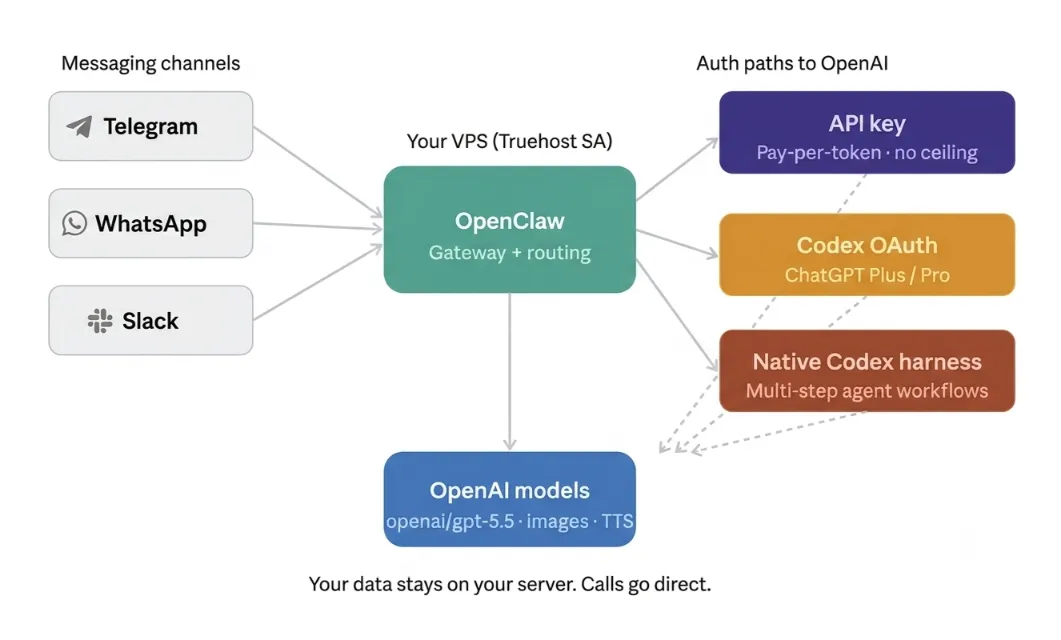
OpenClaw keeps model routing and authentication as separate layers. That’s the main insight.
All OpenAI models use the openai/* Prefix in your config regardless of which auth method you use. What changes is how OpenClaw authenticates and where the billing goes.
Three paths at a glance:
| Goal | Model Reference | Auth / Notes |
|---|---|---|
| Direct API billing | openai/gpt-5.5 | Set OPENAI_API_KEY |
| ChatGPT subscription | openai/gpt-5.5 via Codex OAuth | Best for Plus/Pro subscribers |
| Native Codex execution | openai/gpt-5.5 + agentRuntime.id: codex | Advanced / power users |
The core tradeoff:
- API key = pay-per-token, no ceiling, full model access
- Codex OAuth = fixed monthly cost tied to your ChatGPT subscription, subject to subscription limits
Pick the one that matches how you want to pay.
Connect via OpenAI API Key
Best for: flexible, usage-based billing; works with every OpenAI model
a) Generate your API key
- Go to platform.openai.com → API Keys → create a new key
- Name it clearly something like ‘OpenClaw Production’
- Copy it immediately. It won’t show again after you leave the page
- Before you do anything else, set a spending limit in your billing settings
Without a spending limit, a misconfigured agent can burn through credits fast.
b) Add the key to OpenClaw
You have three ways to do this:
- Environment variable:
OPENAI_API_KEY=your-key-here - Interactive wizard: run
openclaw configureand follow the prompts - Onboarding flag:
openclaw onboard --auth-choice openai-api-key
OpenClaw stores your config at ~/.openclaw/openclaw.json. Sensitive data like API keys goes into ~/.openclaw/.env.
c) Set your default model
openclaw config set agents.defaults.model.primary openai/gpt-5.5
d) Verify the connection
openclaw models list --provider openai
openclaw models status
Then start the gateway and send a test message through a connected channel. If the response comes back, you’re live.
Connect via Codex Subscription (OAuth)
Best for: ChatGPT Plus or Pro subscribers who want a predictable, fixed monthly cost
Since May 2026, OpenAI has officially enabled ChatGPT subscription access for external tools like OpenClaw through the Codex OAuth path.
If you’re already paying for ChatGPT Plus or Pro, this means you can power your OpenClaw agent without separate API billing.
a) Run the OAuth flow
openclaw onboard --auth-choice openai
This opens a browser window for you to sign in to your ChatGPT account. Once you authorise, OpenClaw gets a subscription-backed Codex auth profile.
b) Headless VPS setup (no browser)
On a headless server, which is the typical VPS situation, add the --device-code flag:
openclaw onboard --auth-choice openai --device-code
This generates a code you authorize from your phone or a separate device. No browser on the server is required.
c) Set the model
openclaw config set agents.defaults.model.primary openai/gpt-5.5
d) Verify
openclaw models list --provider openai
Then send /codex status in chat to confirm the native runtime is active.
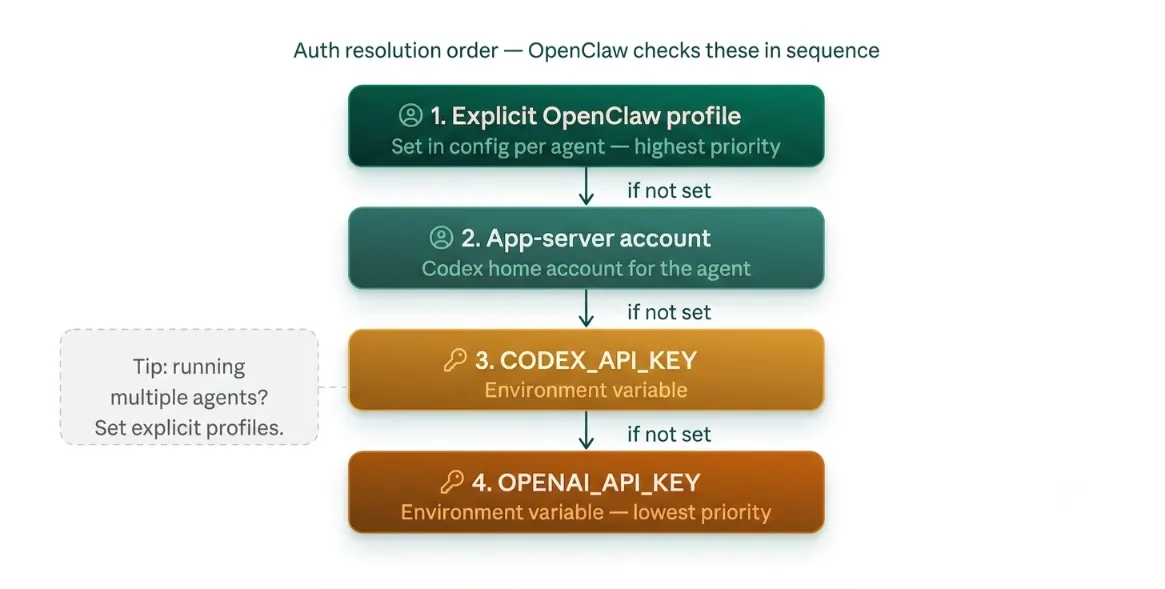
e) Auth priority chain (important for multiple credentials)
If you have more than one set of credentials configured, OpenClaw follows this order:
- Explicit OpenClaw profile
- App-server account
CODEX_API_KEYOPENAI_API_KEY
If you want a specific agent to use a specific auth method, set an explicit profile. Don’t leave it to chance when you’re running multiple agents.
Native Codex App-Server Harness
Best for: multi-step code execution, automated file operations, and complex agent workflows
This is the advanced path and it’s what makes OpenClaw’s OpenAI integration genuinely powerful.
Set agentRuntime.id: codex in your config alongside openai/gpt-5.5. Then verify with /codex status and /codex models in chat.
Here’s what this does under the hood: OpenClaw passes its capabilities to Codex as dynamic tools.
Codex discovers the right tool on demand through native tool search, rather than loading every tool schema upfront.
That keeps the initial context window smaller and reduces first-call latency.
In plain terms, the agent is faster, more focused, and makes better decisions about which tools to use when.
Set Your Default Model
Once your auth is sorted, choose a default model that fits your use case.
| Goal | Model Ref | Notes |
|---|---|---|
| Stable production | openai/gpt-5.5 | Recommended default |
| Latest ChatGPT alias | openai/chat-latest | Moving alias experiments only |
| Image generation | openai/gpt-image-2 | API key or Codex OAuth |
| Transparent-background images | openai/gpt-image-1.5 | Use outputFormat=png, background=transparent |
| Video generation | openai/sora-2 | Text-to-video and image-to-video |
For most users in production: stick with openai/gpt-5.5. It’s stable, well-tested, and available across both auth paths.
Avoid openai/chat-latest in production. It’s a moving alias the underlying model can change without warning.

App & Messaging Integration
Your OpenClaw OpenAI integration isn’t fully useful until it’s connected to a channel you use.
This is where the autonomous potential becomes real. Instead of opening a chat interface, you message your own assistant in Telegram, Slack, or WhatsApp and it acts on your behalf.
Telegram setup:
- Open Telegram and search for
@BotFather - Send
/newbotand follow the prompts to create your bot - Copy the access token BotFather gives you
- Link it to your OpenClaw environment variables
- Approve the pairing code in your chat or container logs
Other supported channels: Slack, WhatsApp, Discord, Signal, iMessage, Microsoft Teams, and more.
Pick the channel your team already uses. There’s no point setting up a new app just for the assistant.
Main OpenAI Capabilities in OpenClaw
Once your OpenClaw OpenAI integration is live, here’s what you can do:
- Chat / Responses: conversational AI across all connected channels
- Image generation + editing: via
openai/gpt-image-2 - Video generation: via
openai/sora-2 - Text-to-speech (TTS): default model:
gpt-4o-mini-tts - Batch and realtime speech-to-text: transcription at scale
- Realtime voice: requires OpenAI Platform credits (not covered by Codex subscription)
- Memory embeddings: via text-embedding-3-small, Let’s the agent remember context across sessions
Note on real-time voice: if you’re on the Codex OAuth path, you’ll need separate OpenAI Platform credits for this feature. It doesn’t draw from your ChatGPT subscription.
Azure OpenAI Configuration (Optional)
For: enterprise teams needing compliance, regional data residency, or Azure credit consumption
If your organisation runs on Azure, you can route OpenClaw through Azure OpenAI instead of the public OpenAI platform.
Set models.providers.openai.baseUrl to your Azure resource endpoint and add your Azure API key. Model names in your OpenClaw config must match your Azure deployment names, not the public OpenAI model IDs.
Main details:
- Requires OpenClaw 2026.4.22 or later for the image-generation path
- Pin your API version with
AZURE_OPENAI_API_VERSION(default:2024-12-01-preview) - Azure image generation is available in specific regions: eastus2, swedencentral, polandcentral, westus3, uaenorth
Note for enterprise teams: if your organisation already has GitHub Copilot licences, the GitHub Copilot provider is often the better fit. Check that path before committing to Azure configuration.
Security & Cost Guardrails
Don’t skip this section. A misconfigured OpenClaw instance is a real risk both financially and for your data.
Minimum steps before you go live:
- Bind the gateway to localhost, not the open internet
- Set a strict spending limit in OpenAI Platform billing before heavy use
- Use OpenClaw’s chat prompt to apply recommended security scripts and approval gates
- Run
openclaw doctor --fixto catch and repair stale configuration - Validate your config:
openclaw config validate
A note on exposure: researchers found over 42,000 exposed OpenClaw instances in the project’s first two months. Most were misconfigured gateways bound to a public IP without proper auth. Don’t be in that group.
If you’re running on a Truehost VPS, our network firewall adds an extra layer but you should still bind to localhost and configure approval gates.
Troubleshooting
| Issue | Cause | Fix |
|---|---|---|
| Model not on allowlist | Wrong auth profile selected | Add model to allowlist in config |
| OAuth window won’t open | Headless server | Use --device-code flag |
| Legacy model refs failing | Old openai-codex/* format | Run openclaw doctor --fix |
| API key not recognized | Missing env variable | Set OPENAI_API_KEY explicitly |
| Auth picking wrong profile | Priority chain conflict | Set an explicit OpenClaw profile |
| Occasional auth failures | OAuth token rotation | Re-run openclaw models auth login --provider openai |
If you’re hitting the legacy model ref issue, it usually means you set up OpenClaw before the openai/* naming change. Run openclaw doctor --fix it rewrites the old openai-codex/* references automatically.
Get Started With Truehost
You now have three clear paths to connect OpenClaw to OpenAI:
- API key: pay-per-token, maximum flexibility
- Codex OAuth: fixed cost via your ChatGPT Plus/Pro subscription
- Native Codex harness: advanced agent workflows with dynamic tool search
The configuration itself isn’t difficult. But where people run into problems is infrastructure.
Running OpenClaw on your laptop means it goes offline when you close the lid. A poorly configured VPS means you spend your evenings troubleshooting systemd services instead of using your assistant.
Truehost South Africa removes that friction.
Our OpenClaw hosting plans come with Node.js, OpenClaw, and all dependencies pre-installed. You connect your OpenAI credentials, and you’re live, with no setup headaches.
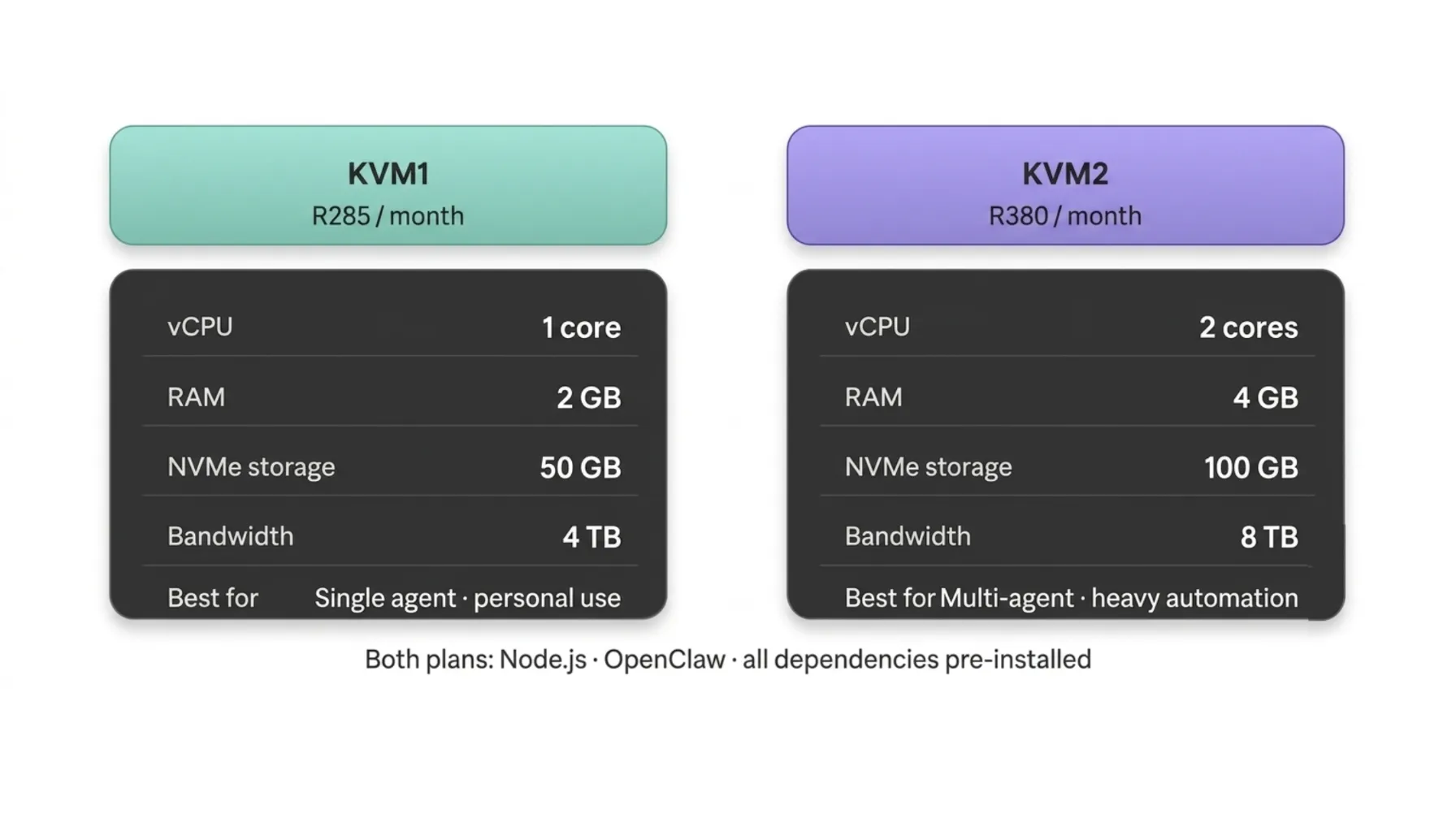
Plan options:
- KVM1: R285/mo, 1 vCPU, 2GB RAM, 50GB NVMe, 4TB bandwidth, pre-configured OpenClaw
- KVM2: R380/mo, 2 vCPU, 4GB RAM, 100GB NVMe, 8TB bandwidth, pre-configured OpenClaw
KVM1 handles single-user personal assistants and small business bots comfortably. KVM2 is the right pick if you’re running multiple agents or heavy automation workloads.
OpenClaw OpenAI Integration FAQs
Do I need coding experience to set up OpenClaw with OpenAI?
Basic terminal comfort helps, you’ll run a few commands and edit a JSON config file. You don’t need to write code. The openclaw onboard wizard handles most of the setup interactively. If you want zero setup time, a pre-configured Truehost OpenClaw VPS means you skip even that.
What’s the difference between using an API key and the Codex OAuth path?
An API key uses pay-per-token billing directly through the OpenAI Platform. You pay for what you use, with no ceiling unless you set one. Codex OAuth uses your existing ChatGPT Plus or Pro subscription, fixed monthly cost, but subject to subscription limits. If you already pay for ChatGPT Plus, the OAuth path is usually more cost-effective for moderate usage.
Which OpenAI models can I use with OpenClaw?
Any model accessible through your auth method. With an API key: GPT-5.5, image generation (gpt-image-2), video (sora-2), TTS, embeddings, and more. With Codex OAuth: GPT-5.5 agent turns plus most standard features. Realtime voice requires OpenAI Platform credits regardless of which auth path you use.
Is my data safe running OpenClaw on a VPS?
Yes, that’s one of OpenClaw’s core design principles. Your conversation history stays on your server. API calls go directly from your VPS to OpenAI using your key. No third-party middleman holds your data. Keep your gateway bound to localhost and set up proper approval gates, and you’re in a much stronger position than any hosted AI service.
I’m on a headless VPS with no browser. How do I complete the Codex OAuth flow?
Use the --device-code flag: openclaw onboard --auth-choice openai --device-code. This generates a code you can authorise from your phone or any separate device with a browser. No GUI required on the server.
What happens if OpenClaw picks the wrong auth profile?
It follows a priority chain: explicit OpenClaw profile → app-server account → CODEX_API_KEY → OPENAI_API_KEY. If you have multiple credentials and the wrong one is being used, set an explicit profile in your config to pin that agent to a specific auth method.
Can my business use Azure OpenAI instead of the standard OpenAI platform?
Yes. Set models.providers.openai.baseUrl to your Azure resource endpoint and use your Azure deployment names as model IDs. You’ll need OpenClaw 2026.4.22 or later for image generation support. This path is designed for enterprise teams with compliance requirements or existing Azure credit commitments.
What’s the minimum VPS spec I need to run OpenClaw reliably?
OpenClaw itself is lightweight. For a single-user personal assistant, 1 vCPU and 2GB RAM is sufficient, that’s what our KVM1 plan at R285/mo provides. If you’re running multiple agents or heavy automation, move to 2 vCPU and 4GB RAM (KVM2 at R380/mo). The official minimum is Node.js 22.19+ and at least 16GB RAM for multi-agent workloads, but single-agent use is much less demanding.