 Web Hosting
 Windows HostingBuilt for Windows apps and websites – stability, speed and flexibility
 Reseller HostingLaunch a hosting business without technical skills or expensive infrastructure
 Affiliate ProgramRefer customers and earn commissions from sales across our platform
 Domain SearchFind and secure a domain name in seconds with our quick lookup tool
 CO ZA Domains
 All DomainsExplore domain names from over 324 TLDs globally – all in one place
 Free Whois Lookup Tool South Africa
 VPS
VPS Website Builder
 Online ShopSet up a sleek eCommerce store with zero coding knowledge
 SSLs
SSLs SupportAccess help articles, how-tos, and everything about our services
 Blog
Blog Contact UsReach our team instantly via live chat or drop us an email
South African households run on WhatsApp, and with 96% of SA internet users on the app, it’s already where your family communicates.
The problem isn’t the channel. It’s that there’s no one person or tool keeping track of everything.
OpenClaw can be your family’s AI assistant. Think shared calendar briefings, school email triage, and shopping list management all flowing through WhatsApp.
That’s what this guide walks you through: using OpenClaw to create a family assistant.

Table of Contents
What You Need Before You Start
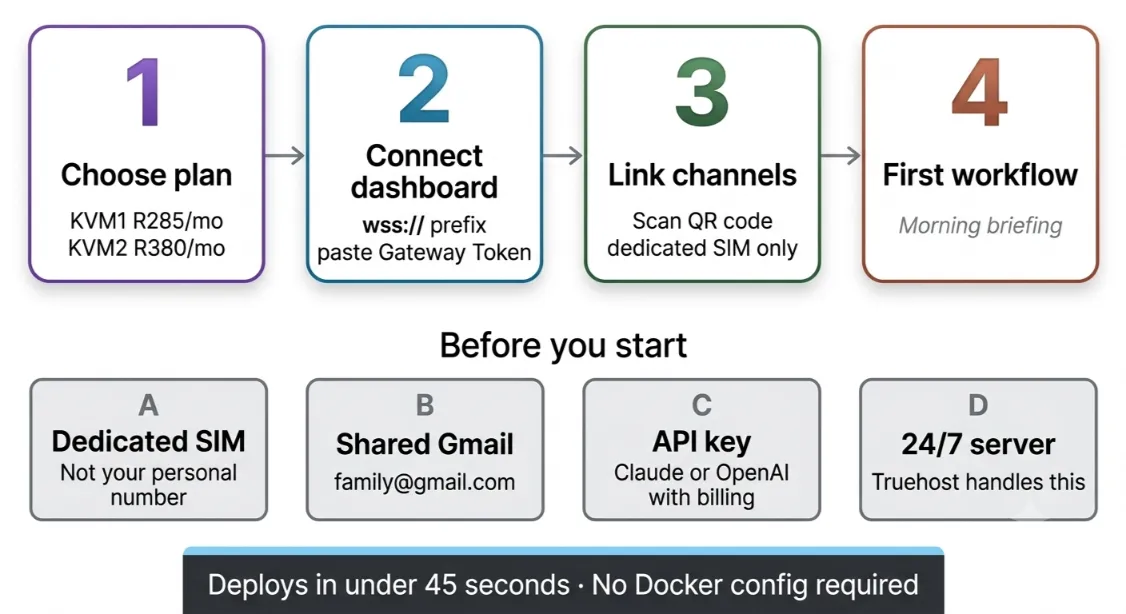
Before touching any settings, get these four things in order.
A dedicated second phone number. Never link your personal number to the assistant. A spare Vodacom, MTN, or Cell C prepaid SIM works perfectly. You’ll use this number to register the WhatsApp account the assistant responds from.
A shared Google account. Create a Gmail address the whole family can access — something like [yourfamily][email protected]. This becomes the hub for calendar and email integration.
A server that runs 24/7. This is non-negotiable. A morning briefing that skips Tuesday because your laptop was closed isn’t a morning briefing. The assistant must be hosted on a machine that never switches off.
A choice of hosting path. You have two options: self-host via Docker (requires technical setup, ongoing maintenance), or use Truehost OpenClaw Hosting (ZA), which handles infrastructure for you. For most families, the Truehost route is the right call.
Choosing Your Hosting Plan on Truehost
Self-hosting OpenClaw on Docker is possible.
But it means configuring a server, managing uptime, handling restarts when the process crashes, and debugging network issues yourself.
Our OpenClaw plans come with pre-configured environments, a free setup fee, and deployment in under 45 seconds. You get a running server without touching a terminal.
OpenClaw KVM1: R285/month
- 1 vCPU, 2 GB RAM, 50 GB NVMe storage, 4 TB bandwidth
- Good for a single family setup with 2–3 active workflows
- Handles morning briefings, shopping lists, and school email triage without strain
This plan covers the majority of households. If you’re starting out, start here.
OpenClaw KVM2: R380/month
- 2 vCPU, 4 GB RAM, 100 GB NVMe storage, 8 TB bandwidth
- Better for larger families, multiple agents, or heavier automation
- Handles more skills, more simultaneous channels, and faster response times
If your household has five or more members across multiple channels or if you plan to run Telegram, Discord, and WhatsApp simultaneously, KVM2 gives you the headroom.
Both plans include pre-configured OpenClaw, a FREE setup fee, and the ability to upgrade anytime from your dashboard with no downtime and no migration required.
Connecting to Your Dashboard
Once your Truehost plan is active, your OpenClaw URL arrives by email.
- Open your OpenClaw URL in a browser. You’ll see the dashboard login screen.
- Switch the prefix from
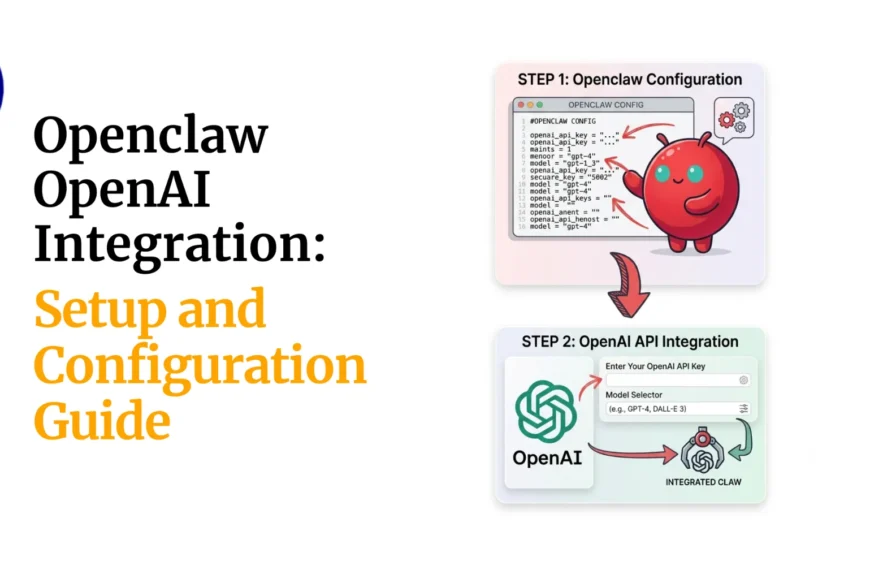
https://towss://. Paste your Gateway Token into the field and click Connect. Thewss://prefix is important this is the WebSocket connection the dashboard requires. - Go to Settings → AI Provider. Select Claude or OpenAI from the dropdown. Paste your API key and click Save.
- Confirm the gateway status shows active before doing anything else. If it shows ‘connecting’ or a red indicator, stop and troubleshoot. Do not proceed until this is confirmed.
Troubleshooting: Dashboard Connection Issues
Gateway status stuck on ‘connecting’: Check that you’re using the wss:// prefix, not https://. This single character difference is the most common first-time error.
Invalid token error: Regenerate the Gateway Token from your Truehost dashboard. Tokens expire if the server restarts grab a fresh one.
AI provider key rejected: Confirm the key has billing enabled on the OpenAI or Anthropic side. A key with no credits attached will authenticate but fail silently, meaning the assistant appears connected but gives no responses.
Page loads but dashboard is blank: Clear your browser cache and switch to a Chromium-based browser. OpenClaw’s UI has known display quirks on older Safari versions.
Connecting Your Family’s Messaging Channels
Go to Connectors in the dashboard. This is where you link the apps your family uses.
This is the natural starting point for South African households.
96% of South African internet users are on WhatsApp, and the average South African user spends 23 hours and 42 minutes on WhatsApp every month, more than on any other platform.
Your family is already there.
Scan the QR code that appears in the Connectors panel using your dedicated second SIM.
The assistant will now receive and send messages from that number.
Other supported channels: Telegram, iMessage, Discord, Slack, Signal. You can connect multiple channels simultaneously.
Security setting, critical: Set allowFrom to only your family members’ numbers. Never leave it open. An open policy means anyone who messages the number gets a response.
Group chat setting: Enable requireMention in the group chat configuration. This ensures the assistant only responds when tagged directly (e.g., @openclaw what's on the calendar today?) not to every message in the family group. Without this, the assistant tries to respond to every conversation. That gets annoying fast.
Troubleshooting: Channel Connection Issues
- WhatsApp QR code not appearing: Refresh the Connectors page. The QR session times out after 60 seconds. If you wait too long before scanning, it expires and you need to regenerate it.
- QR scanned but status stays ‘pending’: Your WhatsApp account may already be linked to too many devices. Unlink an older device from WhatsApp Settings → Linked Devices, then retry.
- Messages sent but no response: Check your
allowFromlist. If the sending number isn’t on it, the assistant ignores the message silently no error, no notification. - MTN/Vodacom/Cell C numbers formatted incorrectly: Use the international format
+27XXXXXXXXX. Do not use0XXXXXXXXX. The leading zero format will cause the number match to fail. requireMentionnot working in group: Confirm the assistant’s name inIDENTITY.mdmatches what you’re tagging in the group including capitalisation. It is case-sensitive.- Telegram or Signal connected but intermittent: These channels use polling. If your server has high CPU load, response delays increase. Consider upgrading to KVM2 if this becomes consistent.
Giving the Assistant Its Identity
OpenClaw uses a workspace folder containing plain text Markdown files. These become the assistant’s operating instructions.
The main files are:
- AGENTS.md: defines what the assistant is allowed to do
- SOUL.md: sets the personality and communication style
- IDENTITY.md: sets the assistant’s name (used for
@mentionmatching) - USER.md: stores facts about your household
- HEARTBEAT.md: defines what the assistant checks and reports proactively
When you first connect the assistant to WhatsApp, it starts an onboarding sequence.
It asks questions about your household family members’ names, routines, important contacts, and writes those answers as Markdown files.
Every time the assistant starts, it loads these files fresh.
Treat this like briefing a new household employee. The more clearly you define the role upfront, the more useful the assistant becomes immediately.
Vague instructions produce vague results.
One important habit: create dedicated email and service accounts for the assistant. Do not connect it to your personal credentials.
If anything goes wrong with a skill or integration, you want the damage contained to accounts that exist specifically for the assistant, not your primary email.
Building Your First Workflows
Start with one workflow that delivers consistent daily value. Not three. Not five.
One.
Build the habit of interacting with the assistant before you try to automate everything. Here’s what to build first.

1) Morning Briefing
Setup time: ~30 minutes.
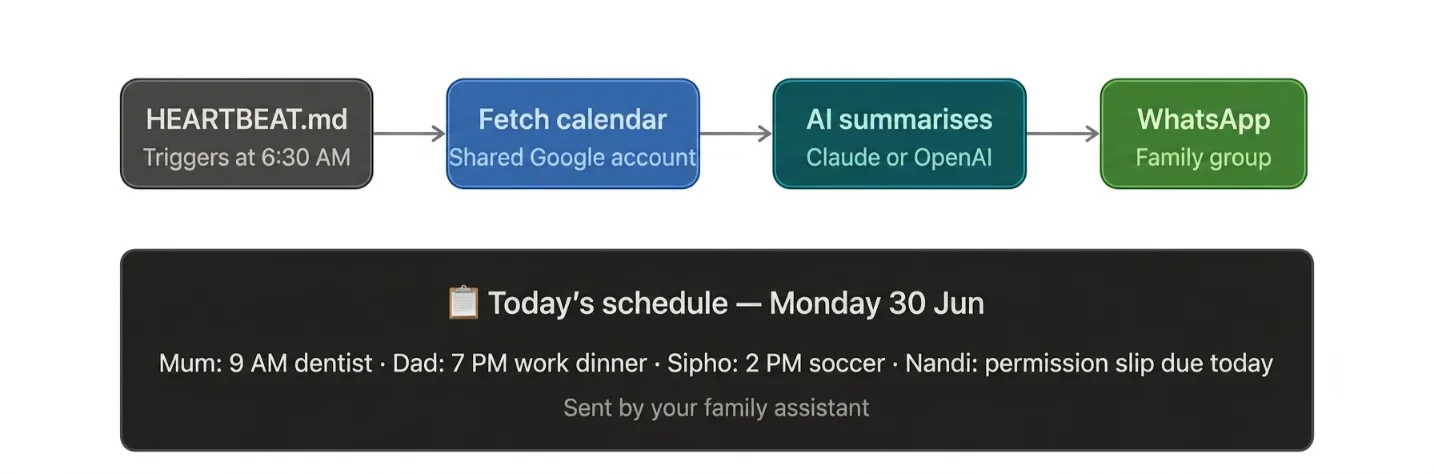
The assistant connects to your shared Google Calendar and sends a summary every morning to the family WhatsApp group.
It pulls each family member’s schedule for the day school events, work commitments, extracurricular activities and formats it into a single readable message.
2) School Email Triage
The assistant monitors your shared Gmail inbox.
It scans incoming messages and flags anything urgent fee reminders, permission slips, event notices, emergency closures.
The flagged messages come through to WhatsApp with a summary. You only look at what needs your attention.
3) Shared Shopping List
Any family member texts an item to the group or directly to the assistant via WhatsApp.
The assistant adds it to a persistent shopping list, organises it by category, and can read the full list back on request.
How Workflows Compound
These three workflows seem simple.
But within two weeks of consistent use, the assistant knows your family’s schedule better than most people, and it never takes a sick day.
The compounding effect kicks in when information flows automatically rather than requiring someone to remember to share it.
Extending the Assistant with Skills
Skills are modular add-ons that extend what the assistant can do.
They are like plugins, each one adds a specific capability without affecting the rest of the setup.
You install skills via Clawhub from the command line:
clawhub install calendar-skill
clawhub install weather-skill
Recommended skills for South African families:
- Calendar skill: deeper Google Calendar integration beyond the basic briefing
- Weather skill: daily weather summaries; particularly useful for scheduling outdoor activities, and a natural fit for load shedding schedules when paired with the right data source
- Reminders skill: time-based nudges (“remind mum at 2 PM about school pickup”)
One rule before installing anything: review the skill code before installing from unfamiliar authors.
Skills run with access to your assistant’s environment. Only install from sources you trust.
Keeping the Setup Secure
Security for a family assistant is mostly about limiting what the assistant can access and who can reach it.
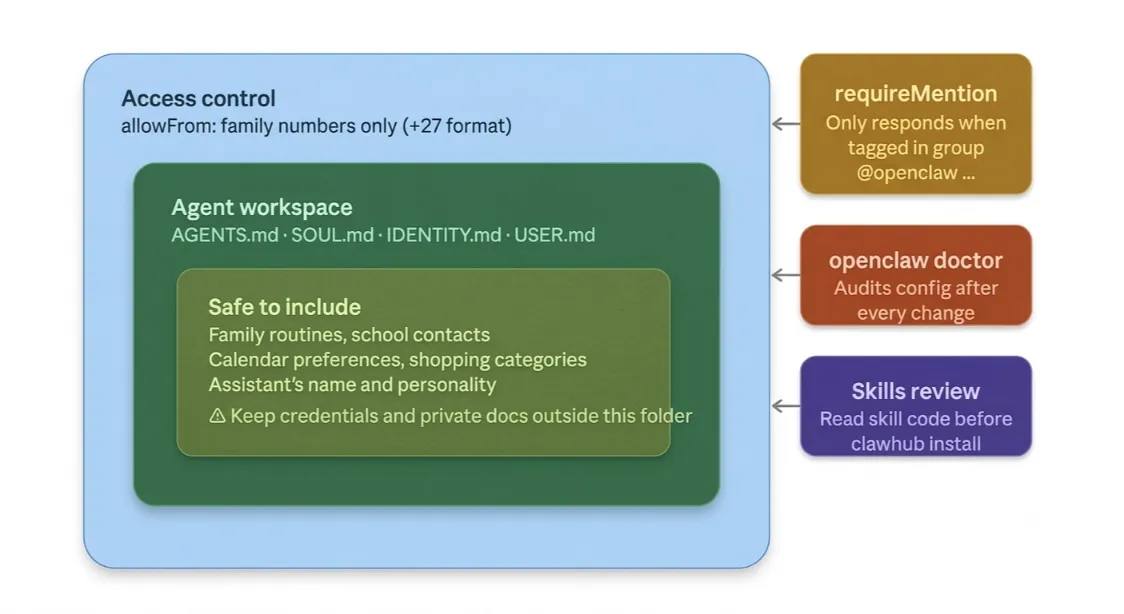
Run openclaw doctor before and after any configuration change. This command audits your setup and surfaces risky or misconfigured settings open DM policies, missing allowFrom restrictions, exposed files.
Disable heartbeats until your setup is stable. The default heartbeat runs every 30 minutes, which means the assistant proactively checks in and reports. During initial setup, this can generate a lot of noise. Disable it, stabilise your workflows, then turn it back on.
Keep sensitive files outside the agent-readable filesystem. The assistant can read anything in its workspace folder. Don’t put files there that you wouldn’t hand to a new employee on their first day.
Revisit allowFrom rules when family members change numbers. If someone gets a new number, the old one might still be on the list. Audit this whenever a SIM changes.
The assistant’s risk is proportional to what you give it access to. Start with low-stakes tasks the morning briefing, the shopping list and expand access as you build confidence in how it behaves.
Family Assistant with OpenClaw FAQ
Can I use OpenClaw with a regular WhatsApp account, or do I need WhatsApp Business?
A regular WhatsApp account works. You do not need WhatsApp Business. Use your dedicated second SIM, not your personal number.
Does the assistant work when WhatsApp has connection issues or load shedding?
The assistant runs on a server, not on your device. As long as your Truehost server stays online, the assistant stays online. It will send messages the moment WhatsApp connectivity is restored on the receiving end.
Is my family’s conversation data stored anywhere?
OpenClaw stores conversation history and session state in a local SQLite database on your server. Since your server is hosted on Truehost infrastructure in South Africa, the data doesn’t leave the region. No conversation data is sent to OpenClaw’s developers.
Can different family members use different channels, e.g., mum on WhatsApp, kids on Telegram?
Yes. Each channel operates independently. You can have mum reaching the assistant via WhatsApp while teenagers use Telegram. The assistant maintains context across both.
What happens if I exceed my plan’s bandwidth?
Truehost will notify you before you hit your bandwidth ceiling. You can upgrade to KVM2 from your dashboard with no downtime, no migration, no reinstall required.
Do I need technical knowledge to set this up?
Basic comfort with a web browser and copy-pasting tokens is enough for the Truehost-hosted route. You don’t need to configure a server, manage Docker, or write any code. If you can follow a step-by-step guide, you can complete this setup.
What AI model should I use: Claude or OpenAI?
Both work well. Claude (from Anthropic) tends to perform better at nuanced family communication tasks and follows instruction files more precisely. OpenAI’s GPT models are widely tested and have more community documentation for OpenClaw specifically. Either is a solid starting point; you can switch providers later from Settings → AI Provider without rebuilding your setup.
Create a Family Assistant With Truehost OpenClaw
Here’s the full journey in one line: prepaid SIM → hosted server → connected channels → first workflow → compounding coordination.
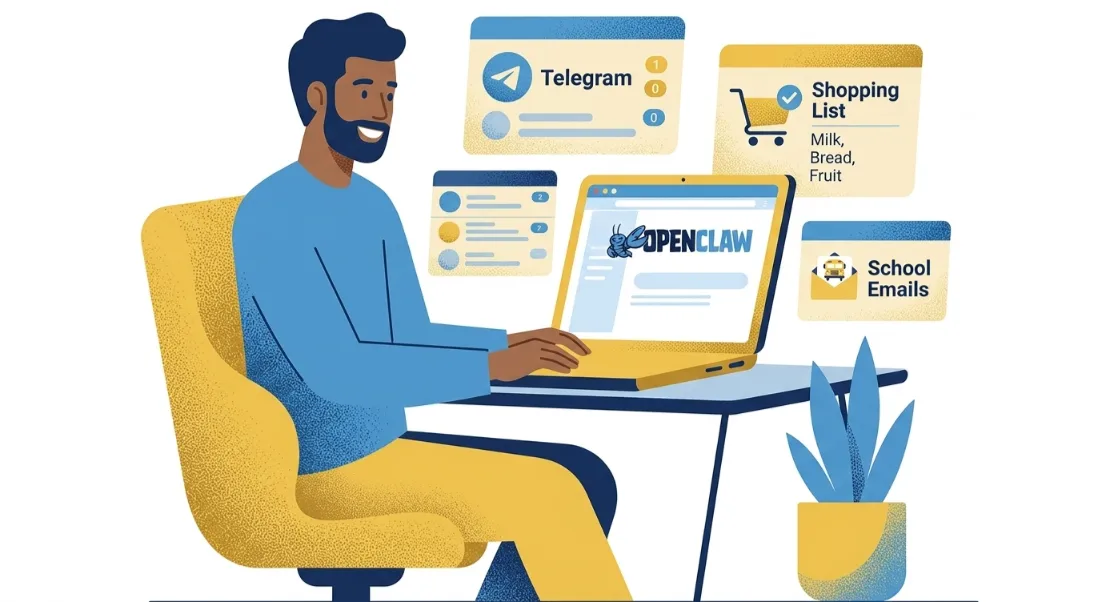
The assistant doesn’t replace how your family communicates. It handles the parts nobody wants to remember.
The shared calendar nobody checks. The school emails that pile up. The shopping list that lives in three different heads at once.
Using OpenClaw to create a family assistant is one of those setups that feels like overkill until it’s running, and then you wonder how you managed without it.
At Truehost, we’ve made this as straightforward as possible.
Our OpenClaw Hosting plans start at R285/month, include pre-configured infrastructure, and deploy in under 45 seconds.